
RCS Marketing: Bringing Your Brand Into the Conversation
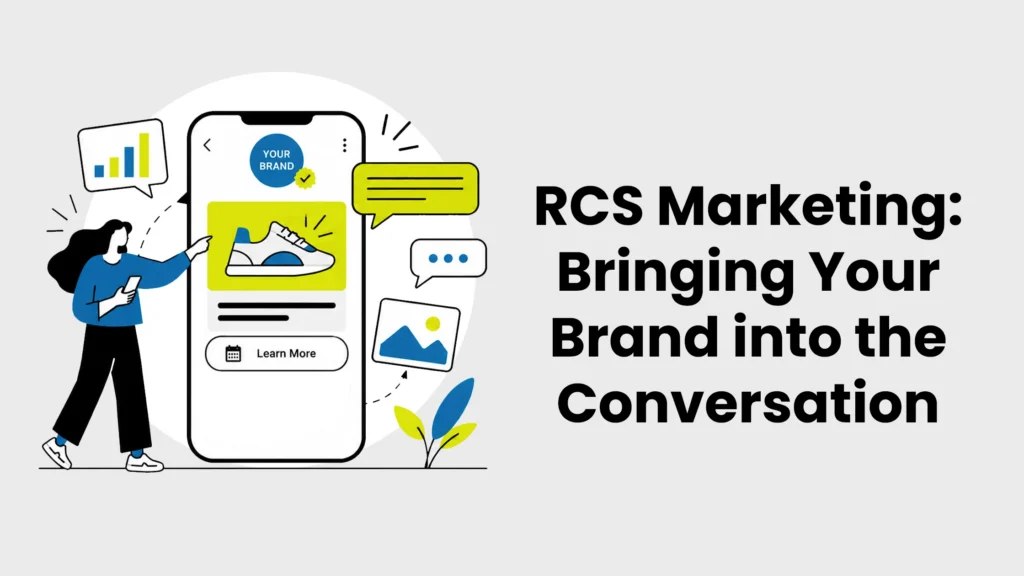
Businesses put considerable thought into how their brand looks, sounds, and feels across websites, emails, advertising, social media, and other customer touchpoints. Yet when that communication moves to traditional text messaging, there are fewer opportunities to carry the same visual identity and interactive experience into the conversation. RCS Marketing expands what businesses can create within messaging, combining the direct nature of texting with richer content and interactive features that can make a message feel more connected to the brand behind it. Instead of treating mobile messaging as a separate, stripped-down touchpoint, businesses can use RCS to create customer interactions that feel like a more natural extension of their overall brand experience. Turn a Marketing Message Into a Branded Experience Customers rarely encounter a business in only one place. They might first see an advertisement, visit a website, read an email, walk into a physical location, and later receive a text, with each interaction contributing to their perception of the business. Companies work hard to make those touchpoints feel connected through recognizable imagery, language, design, and brand standards. RCS creates more opportunities to carry that sense of identity into business messaging, helping the conversation feel connected to the brand experience customers have encountered elsewhere. Rich content gives businesses more freedom to decide how their message should take shape. Images and rich cards, for example, can provide visual context when introducing a product, highlighting a service, or sharing a promotion. Businesses can use these elements to establish a clearer information hierarchy, drawing attention to the main message while giving supporting details their proper place. This creates an experience where the written copy and visual content can complement one another instead of asking a block of text to do everything. The advantage isn’t simply having more visual content available. Marketers have more control over how customers encounter, understand, and move through the information being presented. That additional creative freedom still requires restraint. Effective RCS Marketing should follow the same brand standards and communication principles a business applies to its other customer-facing channels. The imagery should make sense for the brand, the copy should maintain its established voice, and interactive elements should support what the message is trying to accomplish. There will also be conversations where a simple message is more useful than a highly visual experience, and RCS doesn’t change the importance of making that distinction. The goal is to use richer messaging intentionally, creating an experience that feels recognizably yours without allowing the technology to become the focus of the conversation. Give Customers More Ways to Engage With Your Message Presentation is only one part of what makes RCS different. Interactive elements such as suggested replies and suggested actions can provide customers with clearer ways to continue from the message they’ve received. Depending on the experience being created, an action might help someone open relevant online content, call the business, view a location, or take another supported next step. Suggested replies can similarly give customers predefined response options when the business wants to make continuing the conversation simple. Consider a business introducing a new service to customers who may be interested in learning more. A conventional marketing text could describe the service and provide a link, leaving the recipient to decide whether and how to continue. With RCS, the business could present the service with rich media and give customers suggested actions for exploring additional information or taking the next step directly from the conversation. RCS Marketing can be designed around response as well as delivery. This gives businesses more opportunities to invite customer participation instead of simply broadcasting a message. RCS Marketing Expands Your Business Texting Strategy The growth of RCS doesn’t mean businesses need to leave SMS behind. SMS remains a useful channel for direct communication and can be well suited to messages where speed, simplicity, and straightforward information are the priority. RCS provides another set of possibilities for interactions where richer presentation, visual content, recognizable business identity, or interactive choices can contribute to the customer experience. Rather than viewing the two as competitors, businesses can think about the different roles messaging can play and what each conversation needs to accomplish. That makes the purpose of the message a useful starting point when planning a campaign. Does the customer primarily need a concise piece of information, or would visual context make the message easier to understand? Are you simply delivering an update, or do you want to give the recipient clear ways to explore and respond? Starting with questions like these keeps the marketing objective ahead of the technology and helps businesses avoid making an interaction more complicated simply because additional capabilities are available. TXTpass supports both SMS and RCS because business communication doesn’t have to be defined by one messaging format. Our goal is to give businesses more ways to reach customers and create communication that fits the interaction they’re trying to build. RCS Marketing broadens the creative possibilities within that strategy, while SMS continues to provide businesses with a practical way to manage campaigns, automate routine communication, nurture leads, and stay connected with customers. Together, these options give businesses greater flexibility to think beyond sending texts and focus on creating better customer conversations. Frequently Asked Questions About RCS Marketing What Happens if a Customer Doesn’t Have RCS?RCS availability can vary depending on factors such as the recipient’s device, messaging app, carrier, and settings. In situations where RCS isn’t available, SMS can provide an alternative way to reach customers. Because TXTpass supports both SMS and RCS, businesses can build their messaging strategy with both channels in mind. The specific process for using SMS as a fallback depends on your campaign setup. Contact us to learn more about your messaging options. What Types of Marketing Messages Can Benefit From RCS?RCS can be especially useful when visual information or interactive choices add meaningful value to a message. A business could use richer messaging to introduce a product or service, showcase an offer, provide customers with choices, or create a clearer
How to Turn On RCS Messaging on an iPhone
If you text between an iPhone and an Android phone, you may have noticed that messaging has gotten a major upgrade. That upgrade is RCS, or Rich Communication Services. But, RCS is much more than that! Instead of relying solely on traditional SMS and MMS, RCS can support features such as higher-quality photos and videos, interactive rich content cards, carousel galleries, read receipts, delivery receipts, typing indicators, and messaging over Wi-Fi or cellular data. The good news is that turning on RCS on an iPhone only takes a few steps. What Is RCS Messaging? RCS stands for Rich Communication Services. It is a newer messaging standard designed to improve upon traditional SMS and MMS texting. When RCS is available, you can enjoy features such as: RCS conversations on an iPhone still generally appear with green message bubbles, while Apple’s iMessage conversations appear blue. What Do You Need to Use RCS on an iPhone? Before turning on RCS, make sure your device and wireless service support it. What you need: RCS availability can vary depending on your carrier and region. How to Check Your iOS Version If your iPhone needs an update, go to: Settings → General → Software Update How to Turn On RCS on an iPhone (Watch Video) Once you’ve confirmed that your iPhone and carrier support RCS, follow these steps: Step 1: Open Settings Tap the Settings app on your iPhone. Step 2: Open Apps Scroll down and tap Apps. Step 3: Select Messages Find and tap Messages. Step 4: Select RCS Messaging Scroll through your Messages settings and tap RCS Messaging. Step 5: Turn On RCS Messaging Toggle RCS Messaging on. That’s it. Your iPhone can now use RCS when communicating with compatible devices and networks. Apple notes that there may be a slight delay after RCS is first enabled before the service becomes active. Quick path: Settings → Apps → Messages → RCS Messaging → On How Do You Know If RCS Is Working? Open the Messages app and start a conversation with someone using a compatible device. When RCS is being used, you may see features such as: The conversation can still appear as a green bubble. A green bubble does not automatically mean the message is using old-fashioned SMS. On an iPhone, green messages can be sent using RCS, SMS, or MMS. Why Don’t I See the RCS Messaging Option? If RCS Messaging doesn’t appear under your Messages settings, there are several possible reasons. Your iPhone Needs an Update Make sure you’re running iOS 18 or later. Go to: Settings → General → Software Update Your Carrier Doesn’t Support RCS RCS on the iPhone is a carrier-provided service. If your carrier hasn’t enabled RCS for your plan or network, the setting may not appear. Apple maintains a list of supported carrier features by country and region. RCS Hasn’t Activated Yet If you just enabled RCS, give the service some time to activate. Apple states that there can be a slight delay after first turning the feature on. Check Your Internet Connection RCS can send messages over Wi-Fi or cellular data. Make sure your iPhone has an active connection. Apple recommends checking your network connection and contacting your carrier if RCS messages still cannot be sent or received. Can You Turn RCS Off? Yes. Go back to: Settings → Apps → Messages → RCS Messaging Then switch RCS Messaging off. If RCS isn’t available, your iPhone may use SMS or MMS when communicating with a non-iMessage recipient. What Are RCS Business Messages? RCS isn’t limited to conversations between individuals. It can also create richer communication experiences between businesses and their customers. Apple provides a separate RCS Business Messages control on supported devices. Users can manage it by going to: Settings → Apps → Messages → RCS Messaging → RCS Business Messages For businesses, RCS represents an important evolution beyond traditional business texting. Instead of relying only on basic text messages, RCS can create more interactive, media-rich mobile conversations. Why RCS Matters for Businesses Using TXTpass RCS opens the door to a new generation of business messaging. While SMS continues to be one of the simplest and most effective ways for businesses to communicate with customers, RCS can expand those conversations with richer content and more interactive experiences. With TXTpass, businesses can build communication strategies around messaging for use cases such as: TXTpass is designed around centralized, personalized and automated messaging, including features for contacts, templates, inbound and outbound campaigns, drip campaigns, keywords, appointments and more. As RCS adoption continues to expand across mobile devices, businesses have an opportunity to combine the immediacy of texting with richer, more engaging customer experiences. RCS vs. SMS vs. iMessage: What’s the Difference? iMessage is Apple’s messaging service for communication between compatible Apple devices. These conversations typically appear in blue bubbles. SMS/MMS are traditional carrier-based text and multimedia messaging technologies. RCS is a more advanced messaging standard that provides additional features when communicating with supported devices outside of iMessage. On an iPhone, RCS and SMS/MMS messages generally appear as green bubbles. Frequently Asked Questions About RCS on iPhone Does the iPhone support RCS? Yes. Apple supports RCS messaging on iPhones running iOS 18 or later, provided the user’s cellular carrier also supports RCS on iPhone. Where is the RCS setting on an iPhone? Go to: Settings → Apps → Messages → RCS Messaging Then turn on RCS Messaging. Why isn’t RCS showing on my iPhone? Your carrier may not support RCS on iPhone, your device may need an iOS update, or RCS may not yet be available for your particular plan or region. Do RCS messages turn blue on an iPhone? No. RCS messages generally continue to appear as green bubbles. Blue bubbles are associated with Apple’s iMessage service. Does RCS work over Wi-Fi? Yes. Apple states that when you’re not using iMessage, RCS messages can be sent over Wi-Fi or cellular-data networks. Can businesses use RCS? Yes. Apple supports RCS Business Messages on compatible devices, carriers and
SMS Marketing Platform: Manage Customer Communication
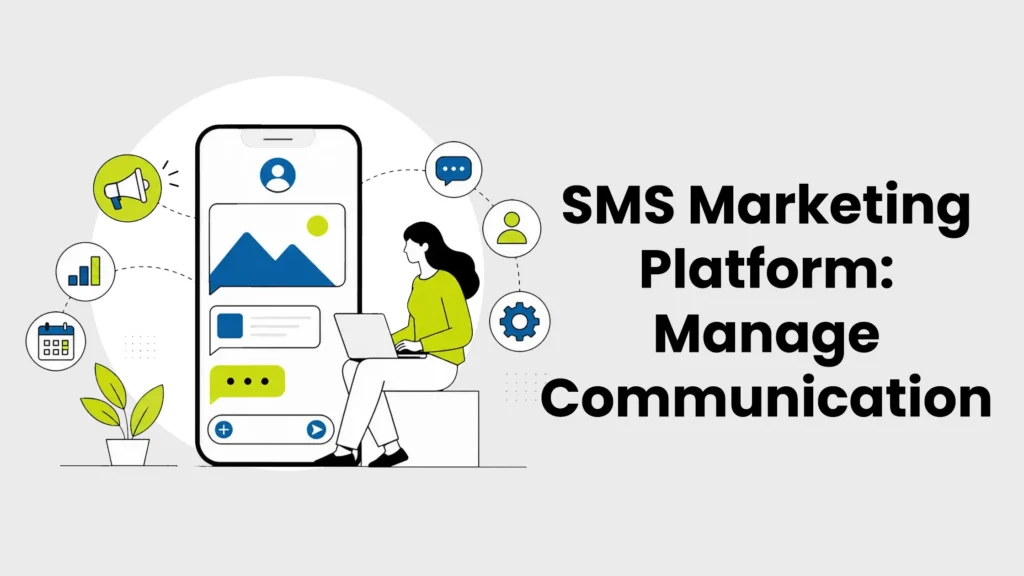
Businesses today have more ways to communicate with customers than ever before, but convenience alone does not guarantee effective communication. An SMS marketing platform gives businesses a centralized way to manage conversations, automate messaging, engage customers, and organize communication without relying on scattered tools or manual processes. At TXTpass, we built our platform for business owners who need a practical solution that helps them stay connected with customers while saving time. Rather than treating texting as a simple messaging tool, we believe it should be a scalable communication channel that supports growth, responsiveness, and stronger customer relationships. What Businesses Should Expect From an SMS Marketing Platform An SMS marketing platform should do far more than send text messages. Businesses need a solution that supports communication throughout the entire customer journey, from initial inquiries to ongoing engagement and follow-up communication. The right platform helps streamline conversations while creating opportunities to strengthen relationships with customers over time. Instead of viewing texting as a standalone activity, businesses should view it as an integrated part of their customer communication strategy. A modern SMS marketing platform centralizes communication, automation, organization, and engagement into one system. Rather than switching between multiple tools, businesses can manage contacts, create campaigns, automate workflows, and maintain communication history in a single environment. This level of organization helps reduce inefficiencies while making customer interactions easier to manage. As communication needs grow, having a unified platform becomes increasingly valuable. Turning Conversations Into Opportunities With SMS Keywords and Inbound Messaging One of the most effective ways to encourage customer engagement is by making it easy for people to start the conversation themselves. SMS keywords allow customers to text a specific word and instantly receive relevant information without navigating a website or waiting for assistance. A customer might text “HOURS” to receive business hours, “DEAL” to learn about a promotion, or “SUPPORT” to access helpful resources. This creates a convenient self-service experience while giving businesses a structured way to handle common inquiries and communication requests. The real value of customer-initiated messaging extends beyond the keyword itself. When someone chooses to text a business, they are opening a direct line of communication through a channel they already use every day. That interaction creates an opportunity to answer questions, provide guidance, share relevant information, and build engagement from the very first message. Instead of relying solely on forms, emails, or phone calls, businesses can create a more accessible communication experience that encourages customers to reach out when they need assistance or information. As inbound message volume grows, businesses need a reliable way to manage those conversations efficiently. Inbound SMS campaigns help automate the initial stages of customer communication by delivering immediate responses, providing useful links or resources, and guiding customers toward the next step. This ensures inquiries receive prompt attention while reducing the burden of manually handling every incoming message. By combining customer-initiated texting with automated inbound workflows, businesses can create a communication process that remains responsive, organized, and scalable as engagement increases. Creating Consistent Customer Experiences Through Automation Customers appreciate prompt communication, especially when they are reaching out with questions or requests. Auto-replies help businesses acknowledge incoming messages immediately and provide reassurance that communication has been received. Even when a team member is unavailable, customers receive confirmation that their message is being processed. This helps establish expectations and contributes to a more positive communication experience. Message templates provide another layer of consistency within customer communication. Businesses frequently encounter recurring questions, common requests, and routine interactions that require similar responses. Templates make it possible to deliver accurate, professional messaging without repeatedly composing the same information from scratch. This helps maintain a consistent brand voice while reducing the risk of errors or omissions. Automation is particularly valuable because it allows businesses to remain responsive without increasing manual workload. Repetitive communication tasks can consume significant time when handled individually. By automating acknowledgments, common responses, and routine messaging, businesses can focus their attention on higher-value interactions. The result is a communication process that remains active and reliable while requiring fewer manual interventions. Using Outbound and Drip Campaigns to Stay Connected While inbound communication focuses on responding to customer actions, outbound messaging allows businesses to proactively reach their audience. Outbound campaigns can be used to share promotions, deliver updates, announce events, or provide important notifications. Scheduled messaging ensures information reaches customers at the appropriate time while maintaining consistency across larger audiences. This helps businesses remain visible and engaged with their customer base. Promotional and informational campaigns serve different purposes but share a common objective: maintaining meaningful communication. Promotions can highlight special offers, while informational messages can provide updates that customers find valuable. Because text messaging is direct and immediate, businesses can deliver time-sensitive information efficiently. This makes outbound campaigns a useful tool for maintaining ongoing engagement. Drip campaigns extend communication beyond single interactions by delivering messages over a planned timeline. Rather than sending all information at once, businesses can gradually nurture relationships through a sequence of relevant messages. This approach supports customer education, long-term engagement, and ongoing relationship development. By creating structured communication journeys, businesses can remain top-of-mind without overwhelming recipients. Improving Appointment Management With SMS Automation Appointment-related communication often requires multiple touchpoints before and after a scheduled event. Confirmation messages help ensure customers know their appointment has been successfully booked. Sending this information immediately provides reassurance and reduces uncertainty. It also establishes a clear record of the scheduled appointment. Reminder messaging serves a different purpose by helping customers stay aware of upcoming commitments. Missed appointments can create operational inefficiencies and disrupt schedules. Automated reminders help reduce these issues by delivering timely notifications before appointments occur. This creates a better experience for both businesses and customers while supporting smoother operations. Communication does not necessarily end once an appointment takes place. Businesses may need to provide follow-up information, gather feedback, or assist with future scheduling needs. SMS automation can help support these post-appointment interactions without requiring extensive manual effort. By creating a complete appointment communication workflow, businesses can maintain engagement
Is Your Business Ready for RCS Services? What to Consider Before Getting Started
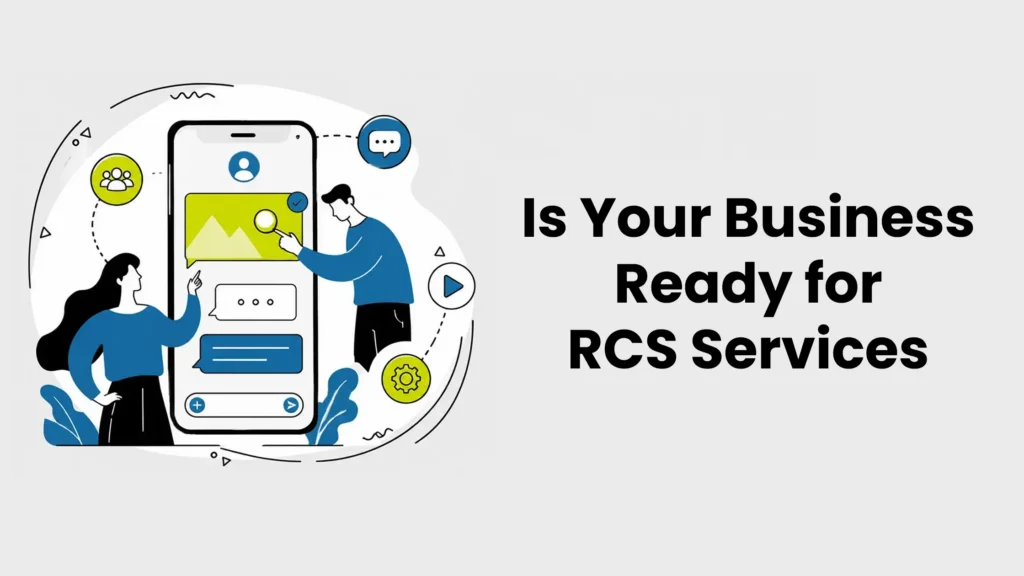
Business texting is becoming more capable, giving companies new opportunities to turn everyday mobile conversations into more engaging customer experiences. For organizations considering RCS services, however, the decision involves more than adding richer messages to an existing communication strategy. Businesses need to understand what they want messaging to accomplish, how RCS fits alongside SMS, and whether their current communication processes are prepared for a more interactive approach. At TXTpass, we believe evaluating those questions before implementation helps businesses make purposeful technology decisions instead of adopting new messaging capabilities simply because they are available. Start With What You Want Business Messaging to Accomplish Before comparing features or planning campaigns, identify the customer interactions you actually want to improve. One business may be trying to generate more responses to promotional outreach, while another may need a better way to manage appointments, nurture leads, or keep existing customers engaged. Defining that objective gives the technology a job to perform and provides a clearer basis for determining whether richer messaging capabilities are useful. It also prevents a common mistake: starting with what a platform can do instead of what customers need the business to communicate. Think about the points in your customer journey where a text currently leads somewhere else. A promotional message might send a recipient to a website to learn more, an appointment reminder may direct someone to a rescheduling page, or an incoming question may require additional information before the customer knows what to do next. Those transitions can reveal where a richer messaging experience may have practical value. Instead of evaluating RCS services solely by the number of features available, businesses can evaluate it by the friction it may help remove from specific customer interactions. This exercise also creates useful benchmarks for future campaigns. Evaluate the SMS Foundation You Already Have Preparing for richer business messaging does not mean treating SMS as outdated. SMS remains an important communication channel because customers’ ability to receive RCS can vary according to factors such as their device, carrier, and messaging configuration. Businesses evaluating RCS services should therefore think about RCS and SMS as parts of a broader messaging strategy rather than assuming every recipient will always have the same experience. A strong SMS foundation gives a company a practical way to maintain communication when richer messaging is unavailable. This is also a good opportunity to evaluate how effectively your current SMS workflows operate. With TXTpass, businesses can use inbound and outbound campaigns, drip campaigns, keywords, auto-replies, reusable message templates, contact management, appointment communications, short URLs, and other tools to make texting more organized and scalable. These functions establish processes around when messages are sent, what triggers communication, how contacts are managed, and how customers are guided toward a next step. Those processes matter because adding a richer channel does not eliminate the need for thoughtful messaging fundamentals. For the best results, businesses can review their current texting strategy before adding RCS services. Having organized contact lists, defined campaign goals, and consistent follow-up processes can make it easier to incorporate new messaging options into existing communication. From there, businesses can identify customer interactions where richer messaging could make information easier to understand, encourage engagement, or simplify the next step. With these fundamentals in place, businesses can introduce RCS with a clearer understanding of how it can complement their current strategy and add value to customer interactions. Determine Whether Your Audience Is Ready for RCS A business may be technically prepared for RCS while its audience has a more varied level of access. RCS availability depends on the recipient’s messaging environment, so businesses should avoid building a strategy around the assumption that every customer will receive the same rich experience. Understanding this variability early helps teams plan messaging that remains useful across different recipient scenarios. It also encourages businesses to think in terms of audience accessibility rather than technology alone. Your contact strategy becomes especially important here. TXTpass contact management allows businesses to import contacts, organize them into lists, maintain communication history, record notes and preferences, and create more targeted communication workflows. Organized customer data gives teams a stronger foundation for deciding which audiences should receive particular campaigns and how those communications fit into a larger customer journey. Instead of treating an entire database as a single audience, businesses can develop more deliberate messaging based on the purpose of each interaction. Audience readiness should ultimately be evaluated from the customer’s perspective. Ask whether richer content would make an interaction clearer, faster, or easier to act on rather than simply making the message look different. Some communications may benefit from an interactive experience, while a straightforward alert or brief update may only need a concise text. Making that distinction helps a business reserve richer experiences for situations where they contribute something meaningful. Plan for a Consistent Experience When RCS Is Not Available A readiness strategy needs to account for what happens outside the ideal RCS scenario. Because not every message will necessarily reach an RCS-capable recipient, businesses considering RCS services should plan how important information and calls to action will still make sense when delivered through SMS. This is not simply a technical fallback decision; it is a customer experience decision. A recipient should still understand why the business is contacting them and what they should do next, even if rich messaging features are unavailable. That means campaign content should be designed around the essential message first. Identify the information the customer absolutely needs, the action you want that person to take, and the simplest way to preserve that action in a standard text experience. For example, an RCS interaction may offer a richer presentation, while an SMS version can use concise copy and a relevant link to continue the journey. TXTpass short URLs can help businesses keep SMS links compact while also supporting engagement tracking. Thinking through both experiences at the planning stage also improves campaign discipline. Instead of creating an elaborate message first and figuring out an alternative afterward, teams can establish the
Texas Introduces SMS Marketing Regulations Under SB 140—What to Know

Please be advised that the Texas state legislature has enacted SB 140 treating SMS/MMS text marketing compliance the same as traditional telemarketing under Texas law (Texas Telephone Solicitation Act, or “TTSA”), with penalties for non-compliance effective September 1, 2025. Changes include: If you are uncertain whether individuals on your marketing list are in Texas, Commio encourages you to consider registering with the state of Texas or removing them from your list until you can confirm their location. Compliance Requirements Starting September 1, 2025, all affected businesses must register with the Texas Secretary of State before sending any marketing texts to Texas residents. Registration includes: Please note: This information is not a substitute for legal advice. If you send SMS marketing to businesses in Texas, we encourage you to consult with your legal counsel to ensure compliance with the new bill. If you have any questions or concerns, please reach out to your Customer Support specialist.
Message Templates for Consistency: How to Set Up and Maintain Brand Messaging

Consistency in communication isn’t just a best practice—it’s a brand essential. Whether you’re managing customer support, marketing campaigns, or internal alerts, staying on-message builds trust, professionalism, and clarity. Inconsistent messaging, on the other hand, can confuse customers, dilute your brand voice, and waste time. TXTpass solves this with reusable, customizable message templates that provide a centralized way to send polished, pre-approved messages. With support for merge fields, short URLs, and attachments, TXTpass helps your team communicate quickly without compromising tone, accuracy, or personalization. How to Set Up Message Templates in TXTpass 1. Access the Template Feature Start by navigating to the Templates section within the Features menu. This is where you can view existing templates or create a new one. If you’re a Basic user, you can save up to 5 templates. Standard and Advanced users enjoy unlimited templates. 2. Create a New Template Click “Add Template” to open the creation screen: Once everything looks right, click Submit to save the template. This is the foundation for replicable, on-brand communication your entire team can use. 3. Edit Existing Templates Templates should evolve as your messaging does. To update one, right-click a template from your list and select Edit. You can revise the message text, adjust merge fields, or swap in a new URL or file attachment. When finished, click Update to save changes or Cancel/X to exit without saving. This makes it easy to refine messaging in real time without rewriting from scratch—keeping your communication fresh and aligned. 4. Share Templates Across Your Team Templates created by Standard or Advanced users are automatically shared with everyone in your organization. This ensures all departments—whether support, sales, or marketing—use the same approved messaging. By centralizing templates, you eliminate the need for manual duplication and reduce the risk of off-brand communication. It also helps break down knowledge silos, making it easier for teams to collaborate and maintain a consistent brand voice. 5. Send Messages Using Templates To use a template in an actual message, navigate to Send Message in the top navigation bar. From there, select a saved template, personalize it using merge fields, and send it off. This not only speeds up outreach but also ensures every message aligns with your standards—whether it’s being sent by a seasoned rep or a new hire. Pro Tips for Maintaining Message Consistency To get the most out of TXTpass templates, follow these practical guidelines: Frequently Asked Questions About Message Templates and Brand Consistency What are message templates used for? Businesses use message templates for customer support, appointment reminders, sales follow-ups, marketing campaigns, payment notifications, and internal communications. Templates help teams send accurate, professional messages while reducing manual work. Can SMS message templates be personalized? Yes. SMS message templates can include merge fields that automatically insert customer information such as names, company details, appointment dates, or account information. This allows businesses to personalize messages without creating each one individually. How often should businesses update message templates? Businesses should review message templates regularly to ensure branding, offers, links, and contact information remain accurate. Updating templates whenever messaging guidelines change helps maintain consistency across customer communications. What are merge fields in a message template? Merge fields are placeholders that automatically populate with customer-specific information when a message is sent. Common examples include first names, company names, appointment details, and account numbers. What are the benefits of using SMS message templates? SMS message templates help businesses save time, improve response consistency, reduce errors, support employee onboarding, and maintain a professional brand voice across all customer interactions. How can businesses maintain a consistent brand voice across multiple teams? Creating approved message templates, establishing communication guidelines, and regularly reviewing customer-facing content can help sales, support, and marketing teams deliver a unified brand experience. Build Trust Through Consistent Messaging Message consistency is a key driver of customer trust and operational efficiency. TXTpass makes it easy to create, manage, and scale your communication using message templates that keep every interaction on-brand. From team-wide sharing to personalized delivery, these tools ensure your message stays sharp—every time you hit send.
Message Templates: A Faster Way to Communicate

When your team is sending dozens—or even hundreds—of messages each week, every second counts. Manually rewriting the same messages wastes valuable time and opens the door to mistakes. That’s where TXTpass message templates come in. By creating reusable, pre-approved texts, your team can cut down on repetitive work, eliminate errors, and move faster without sacrificing quality. Here’s how to set up TXTpass message templates to save time and streamline your communication workflow. How to Use TXTpass Templates to Save Time 1. Centralize Common Messages with Templates Start by identifying messages your team sends regularly—follow-ups, appointment reminders, order confirmations, or support responses. Go to the Templates tab in the Features menu and click “Add Template.” Instead of rewriting the same content, you’ll now have quick access to messages you use most. That alone can save several minutes per message, adding up to hours each week. 2. Use Merge Fields for Quick Personalization In the message field, include merge fields like [First Name], [Company], or [Appointment Time]. This allows the message to auto-fill contact-specific details, giving the appearance of a custom message without manual typing. Merge fields turn mass messaging into efficient, personalized communication—reducing prep time while maintaining relevance. 3. Add Short URLs and Attachments in One Click TXTpass lets you insert shortened URLs and attachments directly into templates. Scroll to the Short URLs tab to add or reuse existing links, and upload attachments if needed. Having these assets embedded in the template saves time spent hunting for links or re-uploading files every time you send a message. 4. Edit and Update Without Rebuilding If messaging needs to change, you don’t have to start from scratch. Just right-click an existing template and choose Edit to quickly adjust wording, links, or files. This flexibility means your team can adapt fast—without losing the time savings that templates provide. 5. Share Templates Across Your Organization Templates created by Standard or Advanced users are automatically shared across your team. Once one person builds a great message, everyone can use it—no need for retyping or internal copy/paste. Shared access eliminates duplicated effort and ensures everyone is working from the same, time-efficient content. 6. Send in Seconds Using the Template Picker When it’s time to send a message, go to Send Message, select your template, and hit send. With personalization and formatting already handled, the entire process takes just a few clicks. This makes high-volume texting manageable—even during busy periods—without sacrificing speed or quality. Time-Saving Tips for Using Message Templates Effectively To get the most out of TXTpass message templates, follow these proven tactics for faster, more efficient communication: Save Hours with Smart Messaging TXTpass message templates are more than a convenience—they’re a smart way to save time, reduce manual work, and streamline your communication process. From centralized content and quick personalization to seamless sharing across teams, templates let you focus on what matters: results. Set them up once, and let TXTpass do the heavy lifting—so your team can move faster, every day.
AutoReply for Set It and Forget It : Streamline Responses with TXTpass

Every unanswered message creates uncertainty—and potentially, a missed opportunity. Whether you’re handling customer support, outreach, or post-event follow-ups, speed matters. But answering every reply manually? That doesn’t scale. With TXTpass Auto-Replies, you don’t have to. This feature lets you set up automatic, pre-written responses that are sent instantly when someone replies to your message. No triggers, no keywords—just automatic acknowledgment that keeps your communication smooth and your recipients informed. How to Use Auto-Replies in TXTpass 1. Access the Auto-Reply Tab Navigate to the Auto-Reply tab in the top navigation bar. This is your dashboard for managing all saved auto-responses. Standard and Advanced users can create unlimited auto-replies, while Basic users are limited to five. Having quick access to your full list makes it easy to manage and refine your responses based on campaign needs or communication volume. 2.Create a New Auto-Reply Click “Add Auto-Reply” to open the setup screen. Here’s what to do: Click Submit to save your auto-reply and activate it for instant response coverage. 3. Edit or Update When Needed Auto-Replies are flexible. To update one, right-click it from your list and select Edit. You can revise the message content, update links or attachments, and save your changes by clicking Update. This makes it easy to fine-tune your message for seasonal changes, new events, or updates in your workflow—without rebuilding from scratch. 4. Automatically Respond with Confidence Once an Auto-Reply is active, it sends automatically when a recipient replies to your initial message—regardless of what they say. This “set it and forget it” system means you never leave a reply unanswered, even when your team is off the clock. It’s ideal for managing expectations, offering quick redirects, or simply assuring contacts that their message was received. 5. Share Auto-Replies Across Your Team If you’re a Standard or Advanced user, your Auto-Replies are shared across your organization. This ensures consistent responses across departments and saves time by preventing duplicate work. Instead of each team member writing their own message, you build once and share everywhere—creating a unified, time-efficient communication system. Smart Tips to Make the Most of Auto-Replies For even better results, apply these practical tips to keep your Auto-Replies working for you: Never Miss a Message Again With TXTpass Auto-Replies, you can acknowledge every message without lifting a finger. Whether you’re managing high-volume outreach or ensuring off-hours coverage, this “set it and forget it” tool keeps your communication flowing smoothly. Create once, automate endlessly—and give every contact the fast, consistent response they expect.
Appointment Systems for Fewer No-Shows: Streamline Scheduling and Keep Customers Committed

Appointment Systems for Fewer No-Shows: How to Streamline Scheduling and Keep Customers Committed Missed appointments cost businesses time, revenue, and operational flow. Whether you run a clinic, salon, service center, or sales office, reducing no-shows starts with having the right systems in place. Appointment systems for fewer no-shows go beyond calendars—they integrate reminders, confirmations, rescheduling, and follow-ups to keep customers engaged and accountable. Using TXTpass, which offers built-in appointment booking and SMS automation, here’s how to set up a scheduling system that minimizes no-shows while improving customer satisfaction and operational efficiency. Step 1: Add a New Appointment from the TXTpass Dashboard With TXTpass Appointment systems, the first step is to log in to your TXTpass account and select “Appointments” from the top navigation bar. Click “Add Appointment” to schedule a new booking. Complete the following fields: Click “Submit” to send the appointment invite immediately via text. Step 2: Use Templates to Automate Confirmations and Reminders Before sending appointments, ensure your Appointment Template is properly configured. Go to the Templates tab to create or edit your appointment flows. Each template includes: This structured messaging flow ensures confirmations are handled instantly and reminders are automatically sent, reducing the chance of forgotten appointments. Step 3: Let Customers Confirm, Reschedule, or Cancel via SMS Once the appointment message is delivered, contacts can respond directly via SMS to confirm (Y), decline (N), or use embedded links to reschedule or cancel. To ensure this works smoothly: This self-service model eliminates friction and gives customers control without requiring staff intervention. Step 4: Track Appointment Statuses and Respond Accordingly From the Appointments dashboard, view the Status Bar for quick insight: Each record includes: This visibility allows your team to quickly identify which appointments need attention—whether it’s following up on pending confirmations, rescheduling declined slots, or preparing for upcoming visits. By proactively managing these statuses, you can reduce downtime, rebook open slots faster, and maintain a smooth operational flow even when last-minute changes occur. Step 5: Automatically Rebook or Fill Gaps with Reminders and Waitlist Features Use your Reminder settings in templates to follow up automatically. You can also use custom follow-up messages after appointment declines or no-responses to prompt rescheduling. Example reminder: “Hi Jamie, your appointment with [Business] is tomorrow at 10 AM. Reply Y to confirm or N to cancel.” To go a step further, you can create your own waitlist system using contact groups and targeted messaging. Here’s how: By building your own waitlist process, you stay agile and responsive. This keeps your schedule full, improves customer satisfaction by offering faster access, and reduces lost revenue from short-notice cancellations. It also creates a sense of urgency and exclusivity, encouraging quick responses from engaged customers. Step 6: Automate Post-Appointment Follow-Up After the appointment takes place, TXTpass makes it easy to send a final follow-up message through your Y-Confirmation response or a custom message built into your appointment template. Your follow-up message can: Example message: “Thanks for your visit! We’d love your feedback: [Survey Link]. Ready to rebook? Tap here: [Link]” Automating this final touchpoint not only closes the communication loop—it also strengthens relationships, improves retention, and creates a seamless path from service to repeat business. Say Goodbye to No-Shows with TXTpass Streamlined appointment systems powered by TXTpass keeps your calendar full, your customers informed, and your operations running efficiently. From instant confirmations to waitlist management and post-visit follow-ups, TXTpass helps you minimize missed appointments and maximize your time. Ready to reduce no-shows and boost customer satisfaction?Set up your appointment automation with TXTpass and take control of your schedule today.
Use Outbound Campaigns to Keep Your Team on Track with Operational Reminders

Operational breakdowns often stem from one root cause—missed communication. Whether it’s a forgotten inventory order, an overlooked compliance deadline, or a skipped team check-in, these missed moments cost time, money, and productivity. The good news? They’re completely preventable. With TXTpass Outbound Campaigns, you can automate essential operational reminders, ensuring that no matter the task—or who it’s for—your message is delivered on time, every time. By scheduling recurring, targeted texts, you remove the burden of manual follow-ups and keep your entire operation moving forward without interruption. Automate Operational Messaging in a Few Simple Steps 1. Open the Outbound Campaign Builder Begin by clicking Add Outbound on the campaign dashboard. This opens the full campaign creation tool where you’ll define everything from timing and message content to audience and delivery frequency. You can also click the Calendar button to view all scheduled campaigns in a visual format, helping you avoid overlaps or gaps. This calendar view is especially useful for managing reminders across different teams or departments, giving you a clear picture of your communication flow at a glance. 2. Choose Your Sender Number and Campaign Name Select the From Number that will appear as the sender of the campaign. Then, assign a clear, descriptive Campaign Name—something specific and easily recognizable, like “Warehouse Inventory Check – Mondays” or “Quarterly Compliance Alert – HR Team.” This clarity helps you and your team quickly identify active campaigns later, especially when managing multiple reminders at different frequencies 3. Schedule the Start Time and Recurrence Set the Campaign Start date and time—this is when your first message will go out. Then, choose the Interval: Automating these time-based reminders ensures they happen reliably, even if someone forgets to manually send a message. It builds structure and trust into your operations. 4. Choose Recipients or Lists Select whether you’re sending to a single contact or a pre-built contact list. Then choose the appropriate To Number for your selected contact(s). This flexibility allows you to direct reminders to exactly who needs them—whether that’s one manager, an entire field team, or a cross-location department. Using contact lists for operational campaigns is a time-saver, allowing you to instantly reach specific groups without re-entering data for every campaign. 5. Add the Message and Attachments In the Message field, enter the text you want sent—up to 140 characters. Keep it concise and actionable. For example:“Reminder: Submit your Q3 safety checklist by this Friday. Link: [Short URL]” You can: Once your message is complete, click Submit to activate the campaign. If you want to start over, click Reset to clear the form. 6. Monitor and Manage Campaigns Once your campaign is active, use the Active, Completed, and Messages tabs to stay on top of everything. Need to stop a campaign early? Just click End to halt future sends. This management system gives you full visibility and control over your operational messaging—making it easy to stay organized and responsive. Tips for Operational Messaging with Outbound Campaigns These strategies help maximize the impact and reliability of your recurring messages: Keep Operations On Track Automatically Recurring tasks don’t need recurring reminders from your team. With TXTpass Outbound Campaigns, you can automate these critical messages so they’re sent reliably, accurately, and on time—no manual effort required. Whether you’re managing supply chain updates, compliance check-ins, or internal communications, this tool ensures every piece of your operation stays in motion. By setting it once, you’re saving time, reducing errors, and ensuring your business never misses a beat.


